Knovli for teachers
Knovli gives a teacher three things: somewhere to put the material, a way to assign it that reports back on its own, and a room-sized game for when a class needs reviewing rather than reading.
Built by a teacher
Knovli is designed and built by a teacher, with a master’s in Educational Technology and a master’s in American History. Every tool here answers a classroom question first: will students actually learn more — and will it save you time?
Classes and rosters
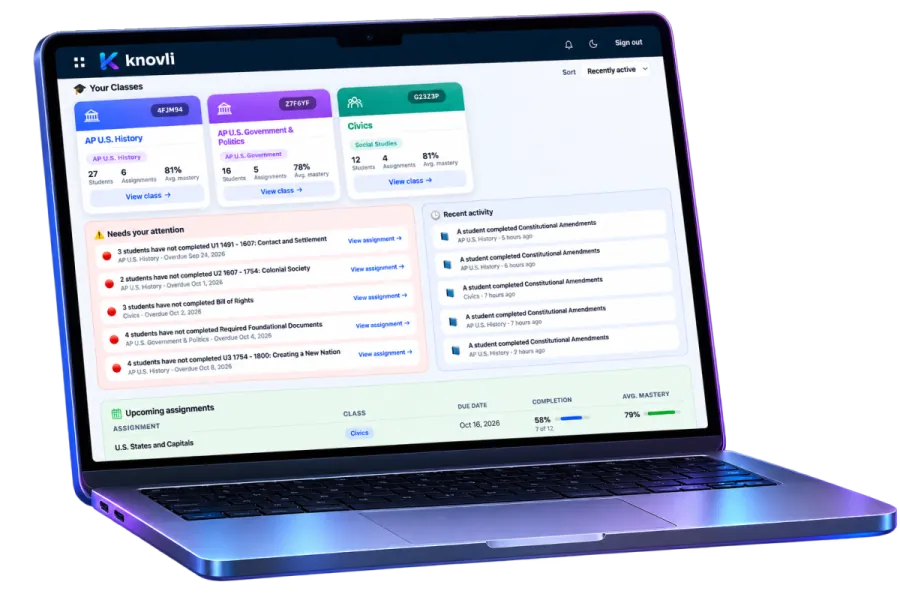
Create a class and students join it. Share decks with the whole class, run it in sections or periods, and see the roster with who is online.
Students see their class from their own side: the decks shared with them, the work set for them, and where they sit on the class leaderboard.
To check what that looks like, press Student view on a class: you become the class’s Test Student and see exactly what your students see — and can do the assignments yourself. The Test Student never counts toward totals, averages, limits or leaderboards, and a banner takes you back.
Assignments that report back
Assign a deck with a due date and, if you want one, an attempt limit. Completion and scores come back automatically — there is nothing for a student to submit and nothing for you to collect.
You can also assign a whole mastery plan: pick the deck and the date it needs to be learned by, and every lesson in the plan becomes its own assignment with its own due date. Knovli Atlas assigns the same way — choose a region, which modes count, and a target percentage.
On a mastery plan you can also set which kinds of practice have to count — that typing a card out must be one of the ways it was proved, for example. It is added to the bar below, never instead of it. And you can set how well the deck has to be known: Quick (right once), Standard (right in two different ways) or Rigorous (three different ways, and again days later). Pick one and your students cannot lower it for that deck, so the Proven figure in your gradebook is the figure they see. Leave it alone and each student sets their own bar, which is what happens today.
Practice that follows up a test
If you score your tests in Examnetic, our test-scoring app, link an Examnetic class to a Knovli class. After a test, its learning insights show which students missed which topics; pick the students who need help on a topic and a deck or a multiple-choice quiz for them — one of your own, one another teacher shared, or one the AI drafts for you to read and change first.
Only those students get the practice in Knovli, as an assignment named after the topic; the rest of the class never sees it. Anything made this way is saved to your own decks or quizzes, open to that class only. Practice quizzes are never ranked, the best try counts, and every score goes back to Examnetic, which shows who has reached the target you set and can give them a short retest.
Goals and rewards
Set a goal for a class: a date window, what has to be done — twenty minutes a day on five days a week, or a particular deck finished by a date — and what it earns — up to three awards at once, each one the student’s to use separately. Aim it at the whole class, one period, or named students. A goal can repeat, run with no end date, and award the moment it is met or when it closes.
Knovli measures it and awards it on its own. Some rewards are badges a student simply keeps; others are yours to honour — a homework pass, extra credit, or wording you write yourself. A student can print one or send it to you with a note about what they want to use it for, and you mark it redeemed. Click any goal to see who has earned it, or end it early.
Curated Content
Alongside decks made by learners, Knovli carries Curated Content written and checked by subject specialists. Anything showing the Content Expert badge has been approved by somebody qualified in that subject, and it is organised by subject and learning standard so you can find the thing you are actually teaching this week.
Live review with Group Play
Group Play turns any deck into a whole-class game: you host, students join with a code, and everybody answers the same question at once.
If students starting their own games mid-lesson is a problem, hosting can be switched off for your students while leaving their ability to join your game untouched.
Diagrams: label the parts of anything
Building a diagram is a teacher tool, included on the paid Knovli Teacher and Teacher PRO plans. Upload a picture of a cell, the heart or a circuit, then click wherever a label belongs and type it, up to twelve labels. To mark a whole part, such as the liver or a country, outline it instead, and it lights up when it is asked about.
In a quiz, each label becomes its own question and works in every quiz game. In a deck, press ⋯ on any card and each label becomes a card: the picture with that part marked, and the label as the answer. Those cards play in Flashcards, Multiple Choice, Speed Quiz, Type the Answer and Match the Pairs, and they count toward proving the deck.
Diagrams take time to make, so you only make each one once. The arrow beside Add question lists the diagrams from your saved quizzes and decks, and each one goes in as its own copy, so changing it leaves the original alone. The same plans can also build a timeline of three to twelve dated events.
Pinpoint: find it on the picture
Pinpoint is the game for diagrams, maps and timelines. Instead of choosing a name from a list, students find the part on the picture itself, or put a timeline in order. Assigning it is for teachers only, and your students need nothing extra to play.
- Practice
- Explore first, then try with second chances and no score. Finishing it completes the assignment.
- Multiple choice
- A part lights up and the student picks its name.
- Identify
- The student finds the part on the picture, or puts a timeline in order.
- Type the answer
- A part lights up and the student types its name, or types the date of a timeline event.
- Mixture
- A bit of everything.
Assign Pinpoint, or play it live
Choose 📍 Assign in Pinpoint on a quiz, then pick your classes, how students answer, the due date and the attempts. Scored ways put each student’s score in your class results, and with more than one attempt the best score counts.
Or play it with the whole room in Group Play. Everyone joins with a code and gets the same question at the same time. With a shared display, the big screen shows each question for as long as you set before it reaches the devices, and the leaderboard and final podium appear there. Leave Auto-play on and the game moves along by itself, or turn it off and press Next when the room is ready.
You can also link up to five diagram, map or timeline quizzes to a deck, so anyone studying that deck who can open the quiz gets a Practice button beside it.
Knovli Escape: escape rooms from a deck
Turn any deck into an escape room. Choose how many locks and how hard, pick a setting, and Knovli writes the story, the clues and the hints. Every lock opens with what is on the deck’s cards, so the answers are always right, and you can change any of the wording before you save.
Nine kinds of lock — matching, multiple choice, passwords, letter codes, number combinations, word locks, symbol keys, pattern grids and a cipher wheel — and a final lock that every other lock hands a clue to. Each lock animates open, in front of the setting you chose.
Assign an escape to a class and each student plays it at their own pace; you see who escaped, how many hints they used and how long it took.
Or host it live: students join with a code into rooms you set up — they pick, you place them, or everyone solo — each room shares one set of locks, and you watch every room and can send it a hint.
Following progress
Assignment completion, per-student scores, class leaderboards and Atlas class progress all sit where you would look for them. The point is to be able to answer "who has not done it" without asking the class.
Your home page opens with Your classes this week: your students, active assignments and average mastery, with anything overdue or due in the next two days listed underneath.
Common questions
Can I set how well my students have to know a deck?
Yes, on a mastery plan. Quick counts a card once they have got it right in any one way; Standard, the default, wants two different ways; Rigorous wants three different kinds and then wants the card again days later. Pick one and students cannot lower it for that deck, so the Proven figure in your gradebook is the figure they see. Leave it as it is and each student chooses their own.
Is Knovli free for teachers?
Yes. Sign up as a teacher and you get Knovli Teacher Base free, with no credit card: create classes, share decks, set assignments and run Group Play. Paid teacher plans add more classes, more students and more AI.
I already have a Knovli account. How do I turn on teacher tools?
Sign in, open Classes and press Turn on teacher tools at the top. Your account gets Knovli Teacher Base free, and your decks and progress stay as they are. Teacher tools are for adults (18 and over).
How do students join my class?
You share a class join code and they enter it in their own account.
Which plans can build diagrams?
Knovli Teacher and Knovli Teacher PRO. The free Teacher Base does not include building them. Students do not need a Teacher plan to play a diagram you give them.
What is the difference between a diagram and Pinpoint?
A diagram is the labelled picture you build. Pinpoint is one game that plays it, along with maps and timelines, by asking students to find each part on the picture. A diagram also plays as a question in every other quiz game.
Can I assign a study plan rather than a single deck?
Yes. Assign a mastery plan and every lesson in it becomes an assignment with its own due date, paced to the date you set.
Do I have to grade anything?
No. Completion and scores are recorded automatically as students work.
Can Knovli give extra practice to the students who struggled on a test?
Yes, if you score the test in Examnetic and link its class to your Knovli class. Pick the topic, the students and a deck or quiz, and only those students get a practice assignment in Knovli. Their scores go back to Examnetic.
Can I stop students hosting their own games?
Yes. Group Play hosting can be switched off for your students; joining your games still works.
Can I reward students for hitting a study goal?
Yes. Set a goal on the class page — a date window, what has to be done, and what it earns. Knovli measures it and awards it automatically. Badges are kept like any other; a homework pass or extra credit is yours to honour, and the student can print it or send it to you with a note.
Can a goal repeat, or run all term?
Both. A goal can be earned more than once inside its window — twice a term, say — and it can run with no end date until you end it. You can also end one early, and anyone who has already met it keeps what they earned.